
How to Move a Squarespace Domain to a New Site
In today’s quick and easy tutorial, let’s cover how to transfer a Squarespace domain (i.e. your home address) from one Squarespace website to another. You might be in this position if you’re moving your domain from an older website to one of our templates or to a newly designed website.
Follow these simple steps to ensure that your online presence remains uninterrupted during this transition.
In this tutorial:
Before you begin
Do note that this tutorial only applies to moving domains managed by Squarespace.
To transfer your domain, you will first need to pay for Squarespace hosting for the site you’re transferring the domain to. But your new site does not need to be public at this stage.
If you have a Google Workspace account connected to your domain, this process will also transfer that over for you.
Tutorial
STEP 1.
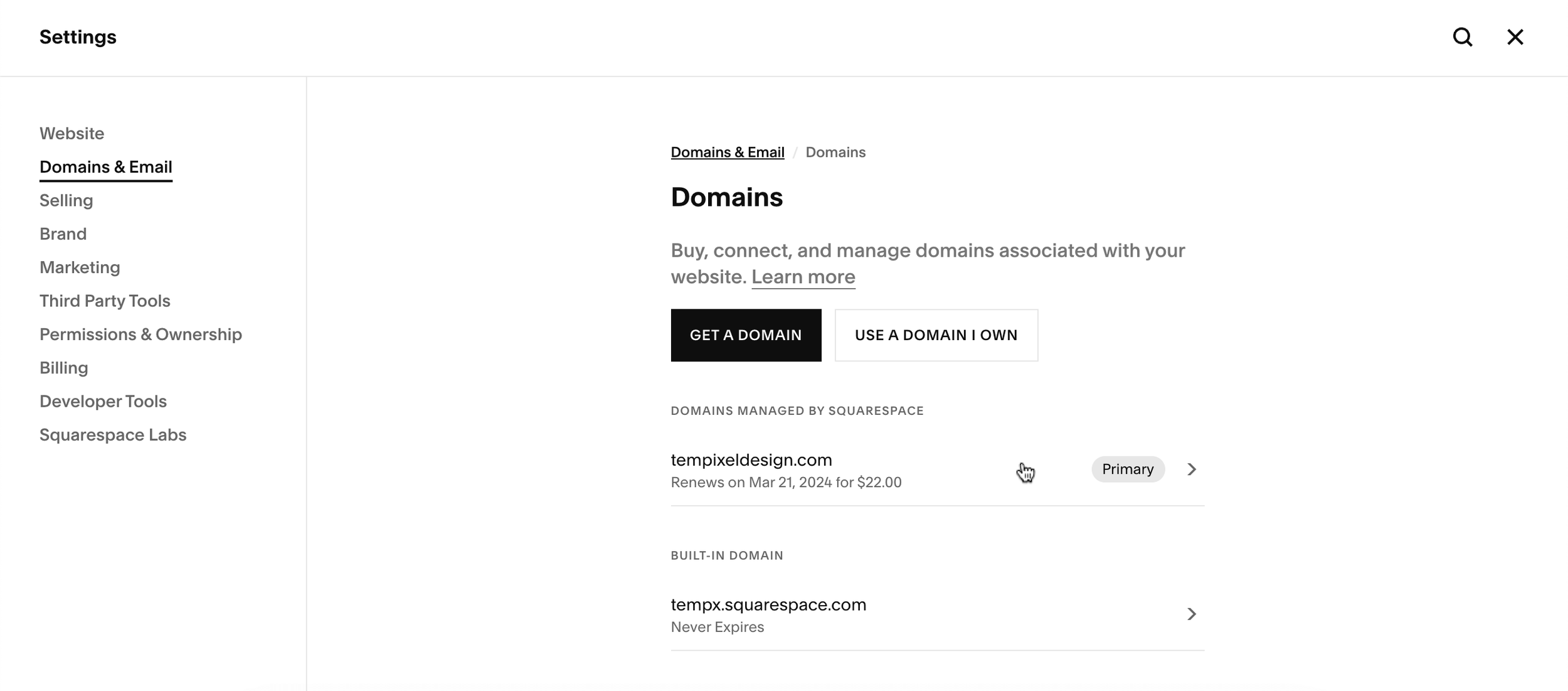
From within the website that’s currently connected to your domain, in the left panel, click on Settings > Domains & Email.
STEP 2.
Click on your domain under Domains managed by Squarespace to open the domain settings.
STEP 3.
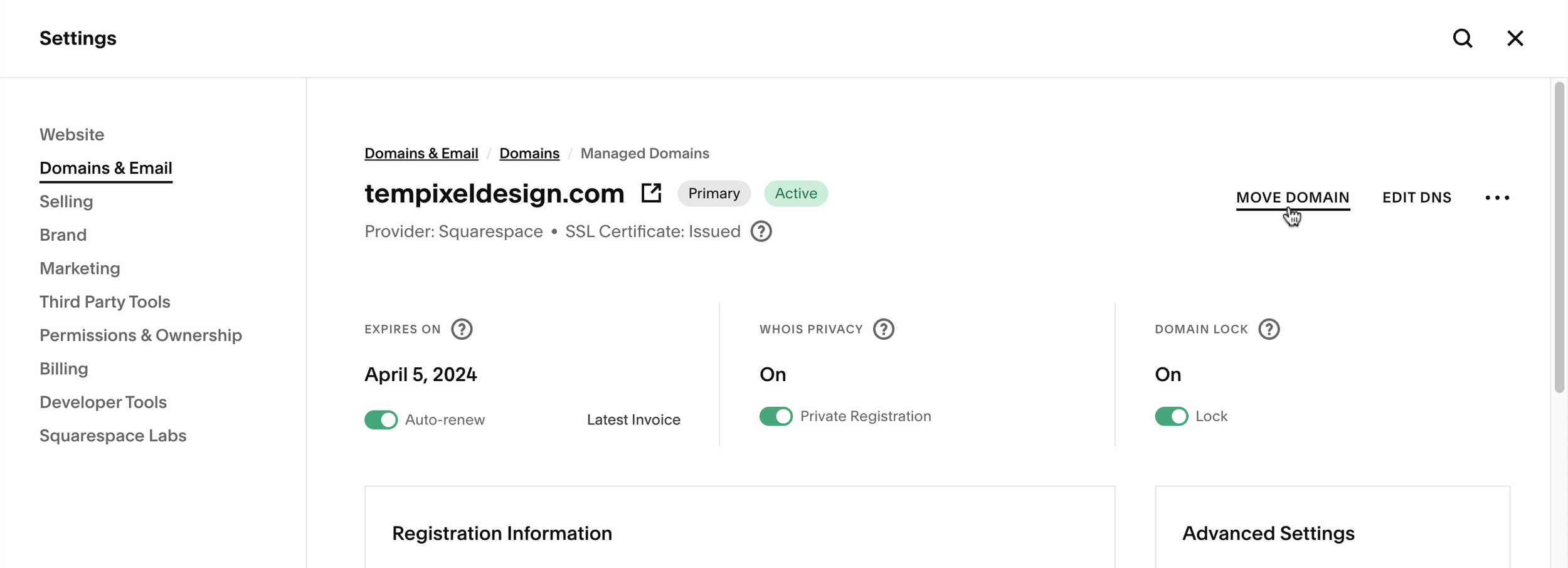
Select Move Domain, which is located around the window top left-hand corner if you’re on a desktop.
STEP 4.
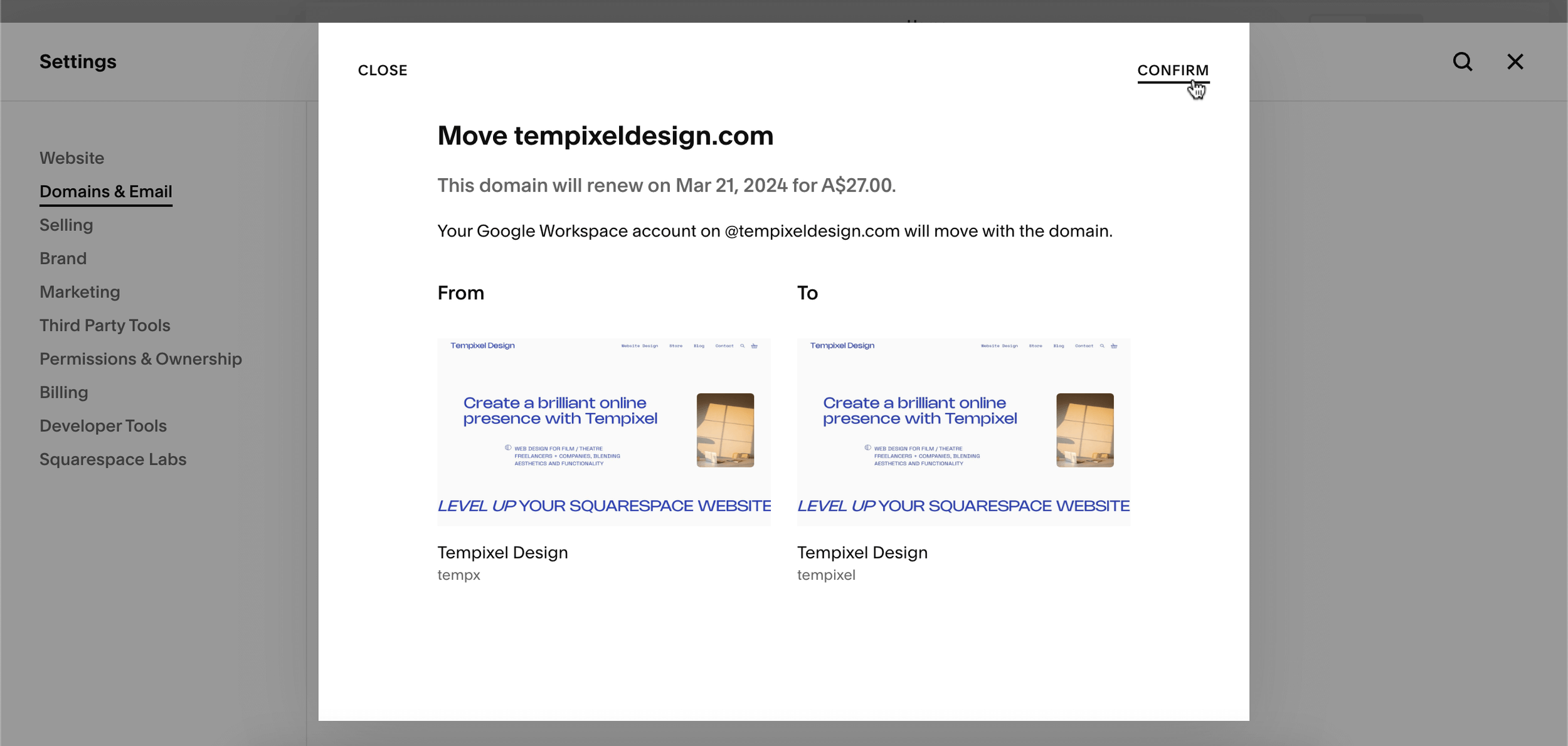
Squarespace will show you all the websites under your account that have active subscriptions. Select the website that you want to transfer your domain to.
Click Save.
STEP 5.
A pop-up box will ask you to click Confirm. Afterwards, Squarespace will give you a confirmation message that the move was successful.
FINAL CHECKS
Once you’ve completed the above steps, to finish off the process and ensure a smooth transition from your old site to the new one:
Set your new site to public, if you haven’t already.
Set your old site to private. (After the domain transfer, your old site will revert to its built-in domain)
Visit your website URL to double-check that your new site is live at your domain.
Troubleshooting
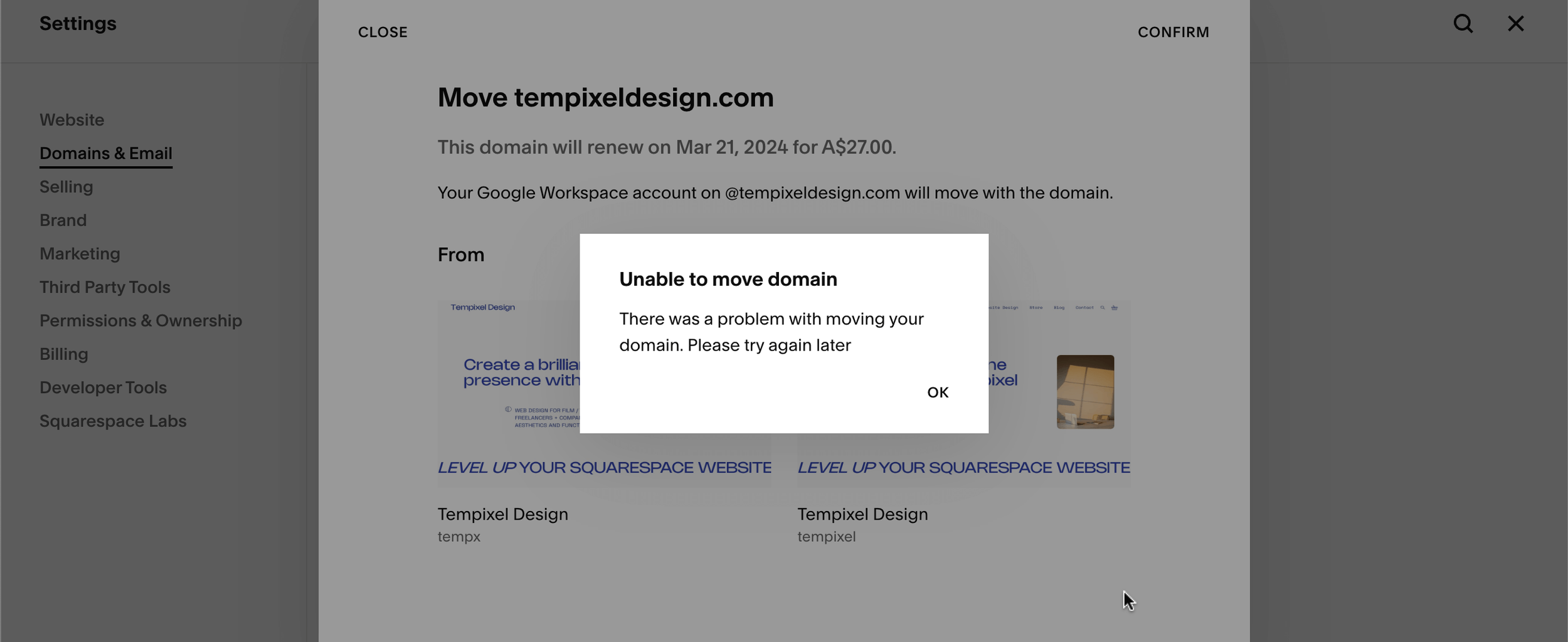
If you get the error message, “Unable to move domain”, just wait a few minutes. Then refresh your Squarespace tabs and repeat the steps to try again. This worked for me after I got an error message the first time.

Ready to level up your Squarespace website even further?
Leave your website in expert hands
