
Should You Update? Squarespace 7.0 to 7.1 Tool Reviewed
We saw a big platform update back in 2020 with Squarespace version 7.1 supplanting version 7.0.
Squarespace hasn’t rushed site owners to make the upgrade—7.0 websites are still supported indefinitely. But now, with a decent 7.1 update tool available, many people are thinking of making the switch. Should you?
How to Upgrade Squarespace 7.0 to 7.1
In 2023, Squarespace released a version update tool to help us convert to 7.1.
Initially, the tool could only support sites using two of the most popular 7.0 template families, Bedford and Brine, but over the course of 2024, Squarespace has made several updates. It’s now possible to convert sites using any 7.0 template to 7.1 using the update tool.
A 100-page limit was also introduced in late 2024 to address issues caused previously by the no-limit. Sites that have over 100 pages (blog posts aren’t counted ↗) can’t use the version update tool—unless you’re working with a Squarespace Circle Member who can lift the limit by contacting customer support.
I thought I’d share my experience using the update tool so far, as a film and theatre website designer, to help you decide if it’s the best method to convert your website. The other method of upgrading to Squarespace 7.1 is to completely rebuild your site on the new version.
In this review:

What is the Squarespace Version Update Tool?
Put simply, the Squarespace Version Update Tool ↗ allows you to migrate your website from the Squarespace 7.0 platform to 7.1.
The tool takes you through a process to move your website and its data across versions. You’ll get to preview your site in 7.1, during which you can add content and make style changes to your website. Other site functions will be disabled while you’re in preview.
Updating is a permanent move; you can’t revert your site back to 7.0 once the process is completed.
As of January 2025, this tool is still in beta, meaning SQSP is still developing it. But it’s publicly available to all 7.0 users.
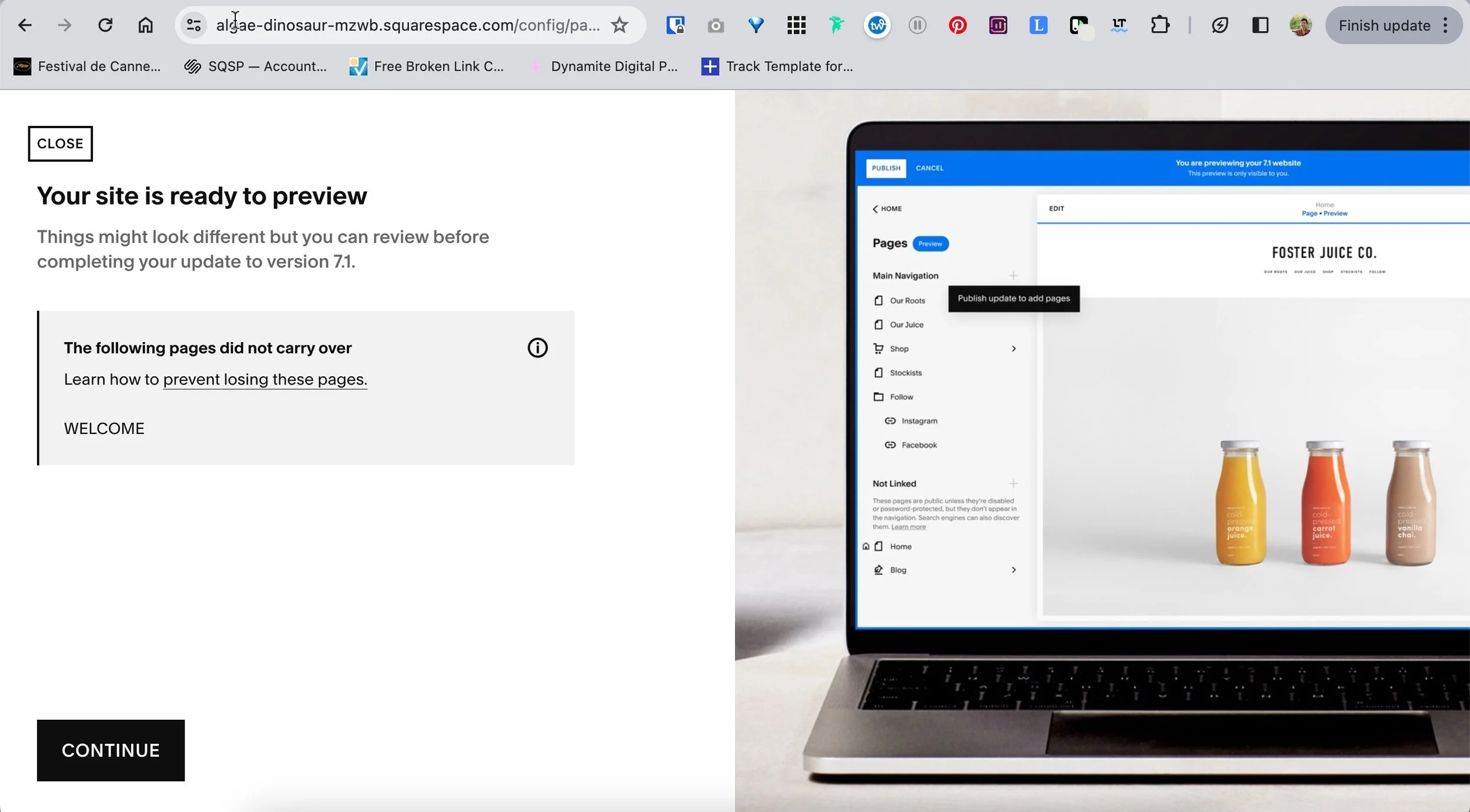
Inside the version update tool.
How to Identify Your Squarespace Site Version and Template
Before we dive into the nitty-gritty of using the tool, you may want to check what version and template your website uses. Follow these steps to find out this information.
STEPS
Log in to your Squarespace account.
Navigate to the website you want to check.
In the left panel, click Website > click Pages to open the Pages panel.
Scroll to the very bottom of the Pages panel. Here the version, template family and template will appear.
Why Do I Recommend Squarespace 7.1 over 7.0?
Despite .1 separating the names of these versions, Squarespace 7.1 and 7.0 are different platforms.
When 7.1 was first released, it had its issues. But over time it has matured into an excellent, easy-to-use site builder, with Squarespace consistently adding new features to make web design more accessible to non-designers and more tools to grow your business.
It’s no secret really that I’m a big fan of Squarespace 7.1. This newer version sports a more intuitive interface than 7.0 and eliminates the stress of picking the wrong template. All 7.1 templates share the same options and features.
Its tour de force is its easy to use drag-and-drop editor, Fluid Engine ↗. Hands down, Fluid Engine is the best drag-and-drop website editor I have ever used! I’ve worked with Elementor and WPBakery and trialled Wix in the past.
Fluid Engine makes designing pages so much faster, and gives you more control over your design. For instance, you can layer elements to overlap on a page—something that isn’t natively possible with the 7.0 Classic Editor.
However, if you’re comfortable with your website at the moment, Squarespace has said that they’ll continue to indefinitely support version 7.0, and the much older version 5.
If you’re building a new site, go for version 7.1.

My Experience and Review of the Version Update Tool
Here's the low-down on my experience updating two image-centric client websites from Squarespace 7.0 to 7.1 with the version update tool.
A bit of backstory. Both of my filmmaker clients were ready for a website redesign, so it made sense that we updated their sites to 7.1.
By coincidence, both websites used Squarespace’s Avenue template before the upgrade. The websites used index pages to house a lot of projects as sub-pages and gallery collection items. And most of my clients’ content consisted of images and video links showcasing their film and commercial work.

The Avenue template in Squarespace 7.0
Since I haven’t tested the tool with other templates, please take my opinion with a pinch of salt 🧂.
Notably, I spent more time preparing for the upgrade than time spent using the update tool. I will, further down, go over those steps so you can learn what I did.
I switched both sites from Avenue to the Bedford template. At the time, the version update tool only worked on sites using the Bedford or Brine template families.
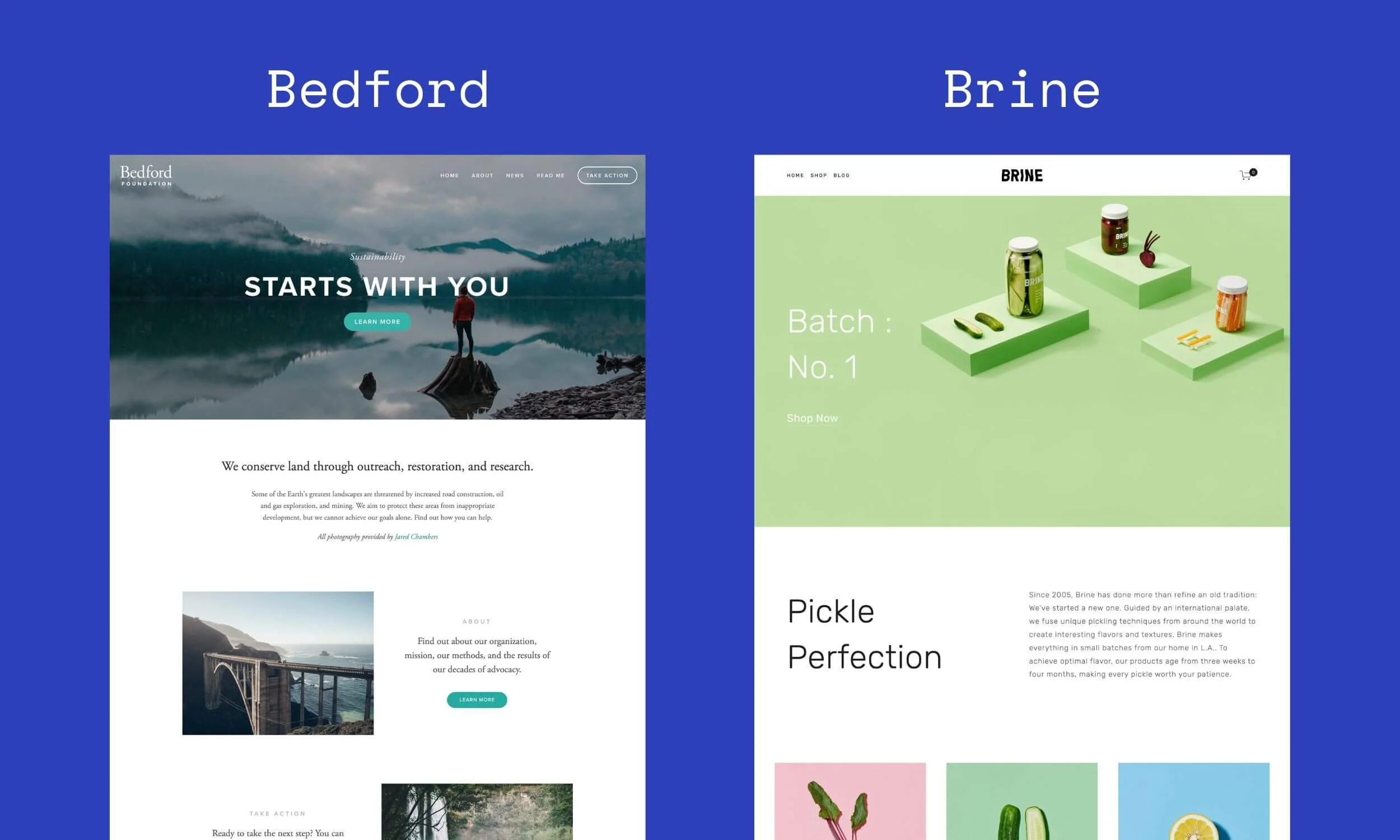
As Avenue is a very different template structurally to both Bedford and Brine, I didn’t find that it mattered so much which one I chose.
Either way, my clients’ websites looked completely different after switching templates. Noticeably, index pages ↗ in Avenue get converted into stacked page sections in Bedford.
Also, when you change template, Squarespace automatically adds in demo pages, which I left in untouched, since I was going to completely overhaul the design after updating to 7.1.
When it came to using the version update tool, the process was quite fast for me, as I didn’t opt to make changes to the content or site styles while in Preview mode.
The first time I used the tool, I was nervous on what to expect, and was doing a 1-day project, so I had zero time for the update to go wrong. I decided to do all of my designing afterwards, where I had access to all familiar site functions and design tools at my fingertips.
According to Squarespace, there’s no limit to how long you spend previewing your 7.1 site with the update tool. So in theory, I suppose you could redesign your whole site in Preview mode.
What to Expect After the Update
For starters, be prepared for significant disruptions in your site functionality and design. Give yourself time to slowly get to know the 7.1 platform interface and make changes to your new website, which could take 1–2 weeks.
Given that my clients’ sites began with the Avenue template, this is how they looked straight after the version update:
Because I left the Bedford demo pages in, the transfer migrated that content across too, which I then deleted.
All original content had been moved to the Not Linked section of the site.
Any sub-page formerly within an index page was converted into a page section. 7.1 does not support index pages.
The tool converted galleries that were within an index page into a page containing a gallery section. You will also lose any gallery descriptions added to gallery settings.
Linked videos that were on index sub-pages will now appear as a large white play button with no video thumbnail.

After moving to 7.1, videos will lose their thumbnail.
Let’s segue into the negatives of the update tool first.
The Cons
Prepare for your site to look very different…
If your current site is structured upon pages and blocks that aren’t supported in 7.1 ↗, you’ll highly likely need to refresh the entire look of your website after migrating.
From my experience with the upgrade tool, the Avenue template is not a compatible template with Squarespace 7.1 owing to its reliance on these unsupported pages: index pages, gallery pages and cover pages.
You can identify what types of pages your 7.0 template uses in the Pages Panel. The icon beside it will indicate what type of page it is:
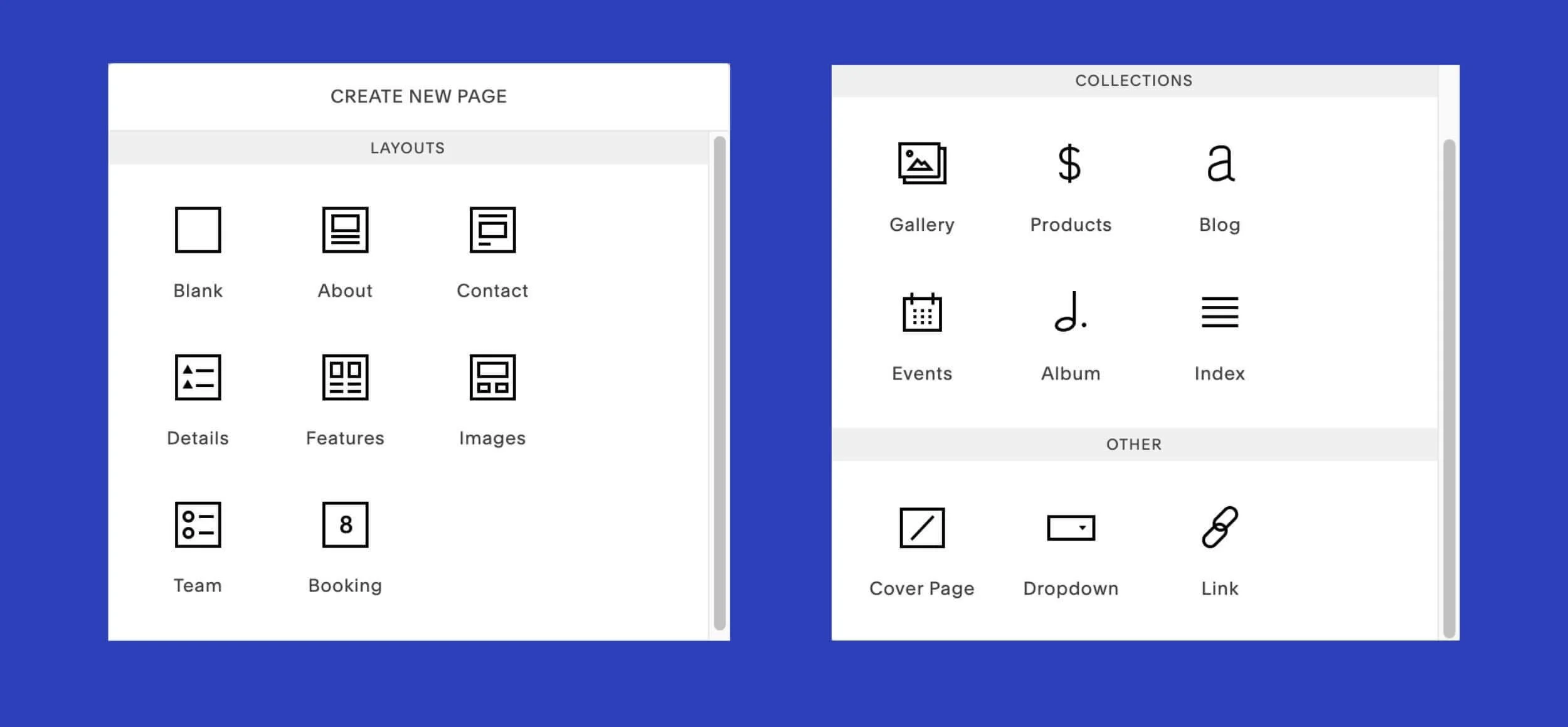
The Pros
Transfers your asset library
A big plus of the version update tool is that it carried over all of my clients’ images. If your website has a large asset library, this is a pro. As a web designer, I appreciated not needing to invest a lot of time and effort on preparing, optimising and re-uploading my clients’ images. Especially when most of my clients have photograph-heavy portfolios.
In addition, my clients could skip the step of getting those images for older project into my hands.
Saves your data
Another reason I really recommended we update my clients’ websites rather than build from the ground up, is that the tool allowed them to keep their website information and insights. They’d both been using Squarespace for several years. This data includes your:
domain
Squarespace subscription and payment history
SEO
analytics data
customer data
orders and sales
So effectively, that’s less work for you! For example, I didn’t need to reconnect my clients’ domains, and they didn’t need to deal with the crossover of paying for a new site and cancelling their old one.
Conclusion
So, should you update your Squarespace site to version 7.1 with the version update tool? The answer, as always, depends on your specific situation.
Use the update tool if preserving your site's data and image assets is a top priority, and you’re already planning to do a redesign. The tool will require some time to get your site looking great again, but it can also save you time on repetitive tasks, like transferring site content and images.
It’s best to engage a Squarespace expert if your current website has a lot of customisations or is very large (100+ pages).
A reason not to use it is if you're hesitant about overhauling your website yourself after the update. In this case, you may wish to hire a web designer.
Don’t use this tool if you want a quick solution to upgrade to 7.1. There is no swift solution that I know of.
Squarespace has been putting a lot of effort into improving and adding features to version 7.1 over the last 4+ years. They aren’t showing any signs of releasing a version 8.0. So, it’s safe to say that 7.1 is going to be the latest version of the website builder for a while.

Preparing to Use the Squarespace Version Update Tool
In theatre and film, we know how important preparation is. Web design is no different. Migrating a site to 7.1 is a permanent move, so before you hit that Publish now button, there are a few vital tasks that I did that you'll want to complete too.
Backup Your Website First
I made a backup copy of my clients’ websites by creating a duplicate of each site. This is technology we’re talking about, so there’s always a chance that something unexpected could go wrong.
Fortunately, Squarespace makes website duplication pretty effortless. The backup copy will sit in your account as a free, unpublished trial site.
This short-term backup also serves as a handy, visual reference later for referring back to your old design and to copy-and-paste any information that doesn’t make it across the transfer.
One caveat is that Squarespace has a 100-page limit ↗ for site duplications.
STEPS
Login to your Squarespace account to access your account dashboard.
Locate the site that you wish to back up.
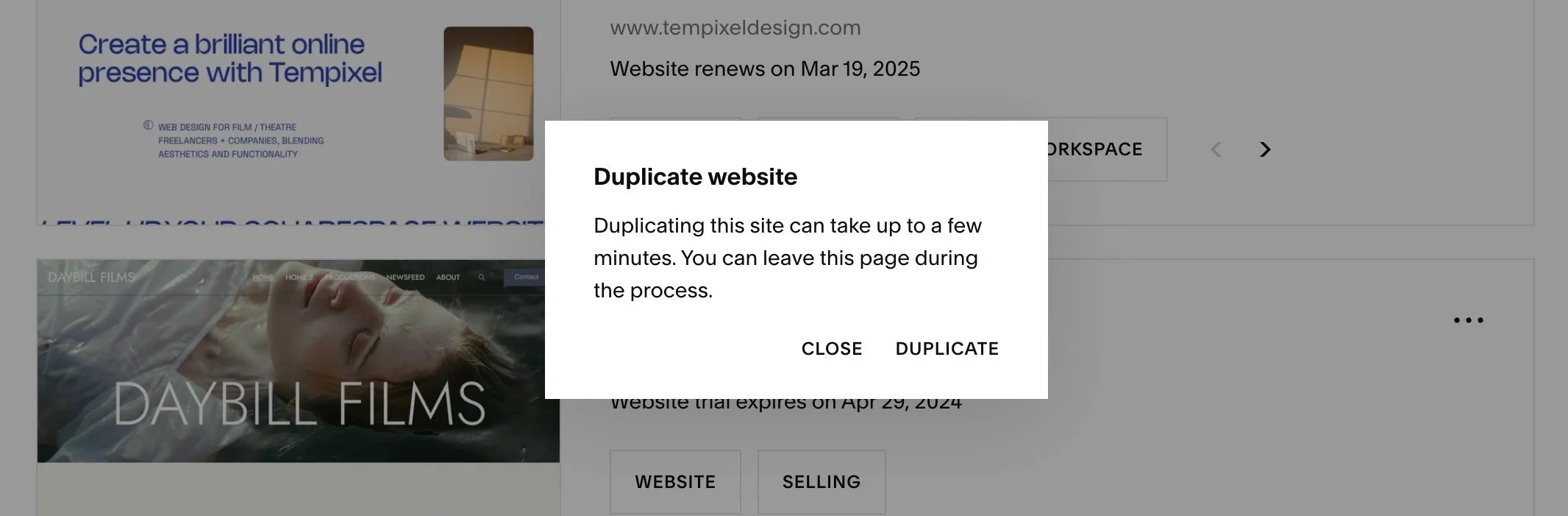
Click the 3 dots on the right > click Duplicate Website.
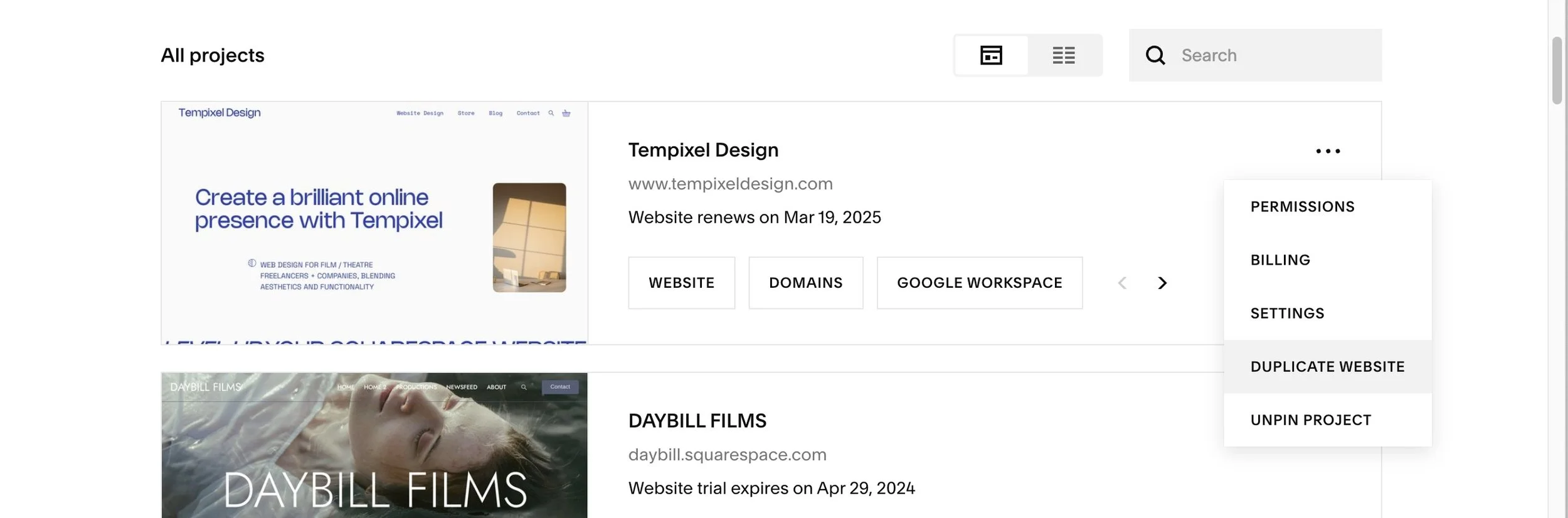
4. A pop-up box appears to inform you that this will take a few minutes. Select Duplicate to start the process.
5. Once the duplicate is ready, check over your copy site. Now is your chance to see if there’s anything that didn’t get copied over, and should be backed up/saved manually.
Something strange that I noticed both times when I made a backup was that most of the featured images would disappear in the duplicated site, as you can see below. But the images were copied across to the asset library.

I couldn’t work out the cause, so it might be a bug. If it’s an issue for you, I suggest reaching out to Squarespace customer support to see whether they can fix it. Despite this flaw, the site structure and layout was kept intact, which is what matters more.
Set Site Visibility to Password Protected (Optional)
After backing up the site to be migrated, return to your live site and change its site availability settings from Public to Password Protected. Things are going to get a bit messy shortly.
While your 7.0 site will remain live and unaffected while you’re previewing your 7.1 site, there’s a strong chance your website will be a WIP straight after using the update tool.
Prevent visitors or search engines from seeing work in progress with the below steps.
STEPS
Type the forward slash key ‘/’ to bring up search.
Search for Site Availability.
Click Password Protected and set a password that you’ll remember.
Hit the Save button in the top right corner.
Other Tasks Before You Update
If your site uses developer mode, you must turn it off before using the version update tool. In my case, I didn’t need to do this.
Copy and paste any custom CSS in a safe place that’s not your website. Know that your code may stop working after the update and need to be rewritten.
Using the Squarespace Version Update Tool
Once you’ve prepared for the update, you can now proceed to use the Squarespace version update tool. Make sure you’ve read Squarespace’s article ↗ before you begin.
Squarespace recommends completing the update in one sitting, as several back-end site functions will be disabled while previewing your 7.1 site.
But there’s no time limit. Having tested it myself, you can close and return to the page while your site’s in preview mode.
STEPS
From the Home menu, click Website > Design.
In the Design panel, click Update to Version 7.1.
Click Get Started.
Read the information and follow the prompts to preview your site. You can at any time cancel the process and discard your changes if you change your mind.
When you’re ready, click Publish update. To clarify, if you set your site beforehand to Password Protected or Private while your site is under maintenance, then this will not publish publicly.
Congratulations, you've made it to the other side!
Wrap-Up
Phew! We've covered a lot of ground today, folks. Whether you're a filmmaker, theatre-maker or creative, I hope this deep dive into Squarespace's version update tool has left you feeling empowered to take the next step—or not—in your website journey.
As always, thank you for reading. And if you're feeling overwhelmed by the update process, remember that help is just a click away. Consider hiring our designer-for-a-day service to take the stress out of updating your website. We can migrate a site from 7.0 to 7.1 and clean it up in just a day.
Until next time, happy updating!
ARTICLE FIRST PUBLISHED: 18 Apr, 2024
