
Make an autoplay video thumbnail clickable in Squarespace
Turning an autoplaying video into a clickable thumbnail isn’t a native feature of Squarespace. But it’s not impossible.
In this no-code Squarespace 7.1 tutorial, I’ll teach you how to build an autoplay video thumbnail on your website to show off a film or commercial—and a workaround for linking it to another page, like a project sub-page or post.
In this tutorial:
Before you begin
Your website must be built in Squarespace 7.1
This method only works on page sections built with Fluid Engine, available in SQSP version 7.1, as we need to use Fluid Engine’s layering features.
We’ll be creating an individual video thumbnail.
To display multiple thumbnails in a grid, for example, you can arrange several thumbnails yourself using this method. However, don’t go overboard as lots of videos playing at once can overwhelm people visiting your portfolio website. There’s a fine line between grabbing attention and information overload...
Prepare the video clip for your thumbnail
The clip might be a few seconds of your film that can be autoplayed and looped.
You’ll be uploading it to your Squarespace site directly.
Compress your video for the web! We don’t want your thumbnail to slow down your page load speed. If you’re not sure what settings to use, ask an editor friend or the Internet.
For my tutorial demo, I used Handbrake ↗, which is a free and open-source video transcoder, and experimented with my compression.
Eventually I landed on 720p at 25 frames per second, the original frame rate of the video. My MP4 file size came out as 1.2 MB.
Have your URL ready
Lastly, you’ll need to have already created the page or post that you want to link to.
Tutorial
LEVEL: Beginner
To make a video block clickable in Squarespace 7.1, you have to attach the link to a transparent image and layer it on top of the video.
The type of blocks we’ll use are:
a video block
an image block
STEP 1. Create an autoplay video
🐰 Skip to STEP 2 if you already know how to make an autoplay video block.
Hover over the page.
Click Add block > Video.
Click the pencil icon (Edit).
Use Add a video to upload your thumbnail video clip to your Squarespace site.
Under Video settings, toggle on Mute video, Autoplay and Loop video.
Under Player controls, choose None.
STEP 2. Add a transparent image block
Now for the hack to make your video block clickable!
Download this transparent PNG.
On your page, add an image block.
Click the pencil (Edit) to upload the PNG to the image block.
Click the Attach Link option to create your link.
STEP 3. Resize the image block to cover the video block
You want the image block—the clickable area—to completely cover the video.
But do not exceed the size of the video block by too much.
Orange lines tell us that the image block is snapping to the size of the video.
In an ideal world, I could get the two blocks to align exactly, but my image block is slightly taller. It’ll work.
STEP 4. Don’t forget Mobile View!
Finally, it’s critical that we make design adjustments to the section in Mobile View, as Squarespace automatically stacks the blocks rather than layers them.
Open Mobile View by clicking the mobile icon in the top-left corner of your window.
Let’s Align Center the video block, which is top aligned by default. Then, when we layer the image on top, it’ll align better.
Adjust the placement and sizing of the blocks. Ensure the image block is on the top layer and covers the video.
Finally, resize your section to remove any excess space under the video thumbnail.
Click Save.
Finishing up, our autoplay video thumbnail looks like this in Mobile View:
🏅 Well done! You’ve completed the tutorial and upgraded your Squarespace site.


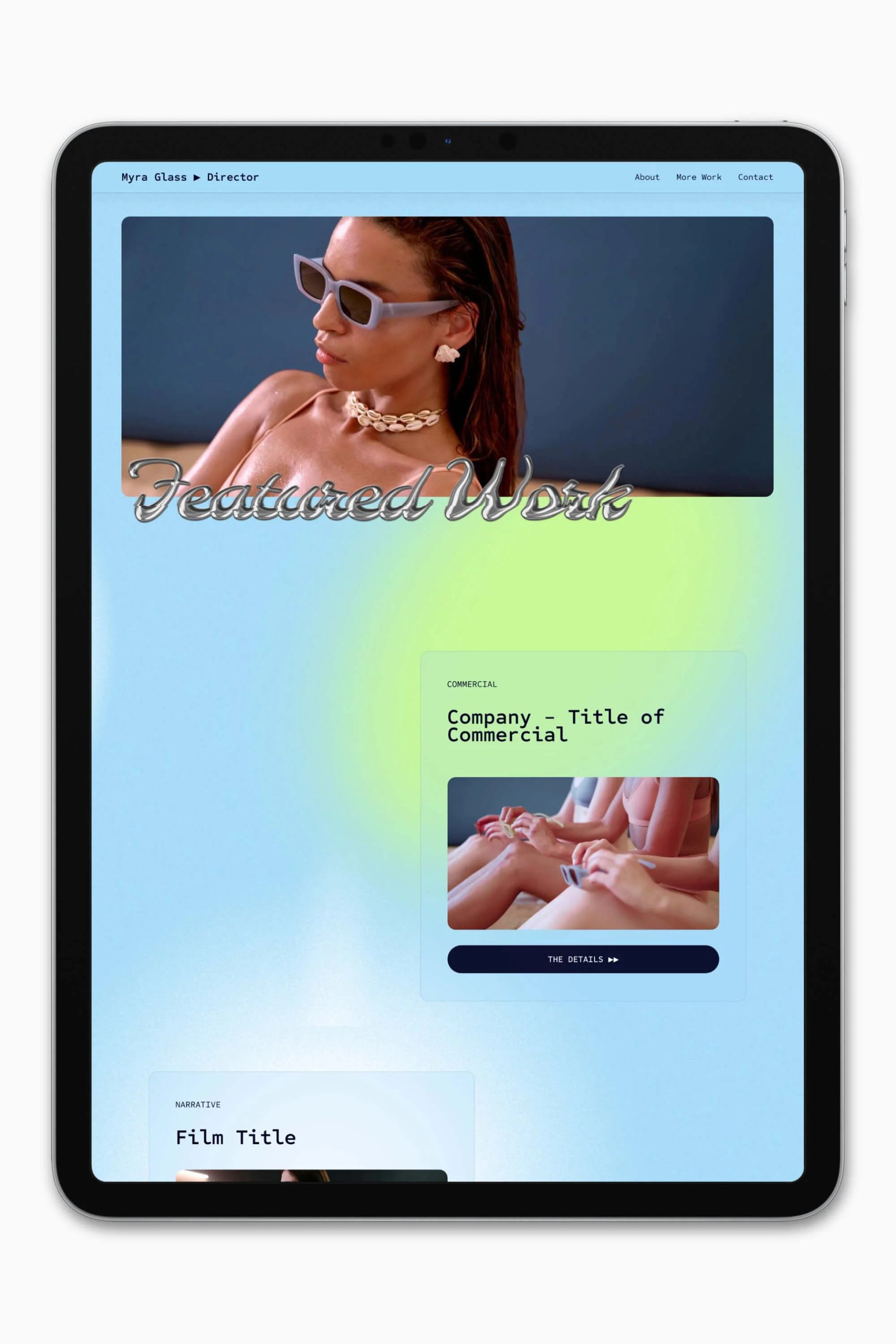


Slate is a website template featuring a bold-minimalist and cinematic design that feels warm and confident. Like the perfect cuppa coffee when you’re on set, use this Squarespace template to give your website and personal brand a boost.
Visit Demo Site
(demo password: Unlock)
Price in NZD • Xe Currency Converter