
Portfolio Page vs Blog Page: Picking the Best Structure for Your Portfolio
I want to dive into how you can build your film/theatre portfolio on the right foundations — and it relates to website structure.
In Squarespace 7.1, the 2 most relevant types of collection pages ↗ for people working in film, television and theatre are portfolio pages and blog pages.
I’ve built pages in the past where I’ve started building without a plan only to realise later that I was using the wrong type of page, and had to start again from scratch. Don’t be me and make the same mistake 😅.
Below, I’ll cover off the main advantages vs limitations of each when thinking about sites for film and theatre. It may come as a surprise, but I usually go for a blog over a portfolio page when I’m creating a portfolio for screen/theatre work. But it’s important to weigh up your individual needs.
Plus, I’ll share a practical tool at the end to help you plan out your website’s structure!
In this guide:
TL;DR
Choose a blog page if you want to create project pages under different categories.
If you don’t need filtering options, you can pick either a portfolio page or a blog page.
What is a portfolio page in Squarespace?
As its name suggests, a portfolio page is a landing page designed to display a collection of projects and creative work.
Each project exists on its own sub-page, and all sub-pages will appear as images or links on a portfolio page.
Portfolio pages are a type of collection page that became available in Squarespace 7.1, the latest version of the website builder.
Squarespace portfolio page advantages
Fluid Engine enabled
What’s awesome about portfolio pages in Squarespace 7.1 is that they use the Fluid Engine drag-and-drop editor, allowing you to use the same tools and features to design a portfolio sub-page as a regular page.
Layering elements and having different section background colours are a couple of the many things you can do easily with Fluid Engine.
In contrast, blog posts use the old Classic Editor, which has more creative constraints for designing layouts and is more fiddly to perfect.
Interactive index styling
A feature that’s exclusive to portfolio pages are the styling options ↗ that add interaction to a project list.
Hover layouts have been trending in recent years for good reason. They add a splash of interactivity to a site, boosting its memorability.
Here’s an interactive portfolio section on the site of Zendaya, built on Squarespace 7.1 and enhanced with CSS code.
Squarespace portfolio page limitations
No portfolio categories or tags
The biggest limitation of portfolio pages for people working in the film industry or in theatre is that you cannot add categories or tags to portfolio pages.
From my experience, filmmakers and workers in the theatre industry commonly want to categorise their projects by type.
For instance, the website of Bunya Productions, an Australian production company, organises work under the categories Film, Television, and Virtual Reality.
Categories and tags help site visitors find what they’re looking for faster by allowing them to narrow down your content with a filter. But with Squarespace 7.1, it’s not possible to add a portfolio filter, as portfolio pages can’t be categorised or tagged.
Filters in Squarespace can be applied using Summary Blocks ↗ and Archive Blocks ↗. I often choose to add a filter function to pages that display a blog or projects (like a portfolio) to improve the user experience. I also find value in adding Summary Blocks to a Home page to filter featured work or recent blog posts.
But as mentioned, you don’t have these choices available with portfolio pages as they can’t be categorised or tagged, whereas blog posts can.
However, there is a workaround. You could create one portfolio page for each category that you need. A portfolio for Film, a second for Television, and so forth.
A limitation of this workaround, though, is that you can’t filter work across multiple portfolio pages. Each portfolio page exists in its own bubble. So filtering featured work under different categories on your Home page isn’t possible.
I would then suggest that you use your Home page to play a showreel or to display recent news posts. Include a written introduction section about yourself/your company—this text will also help to improve your site for search engines (SEO).
No draft mode
This limitation’s a pain from a content management perspective. As soon as you click Save on a portfolio sub-page, it’ll be viewable on your portfolio page.
Not a problem if you’re creating a portfolio from scratch—you can just wait to publish the portfolio page once all your sub-pages are ready. But if you’re updating an already existing portfolio page, and it takes longer than one sitting to design, you can see the issue.
No draft mode also means that you can’t archive projects, as there’s no way to unpublish a portfolio sub-page.
Deleting it will also send it for permanent destruction; it skips the trash bin entirely, whereas blog posts spend 30 days in the recycle bin.
What is a blog page in Squarespace?
A blog page is another type of collection page intended for text-heavier content, such as articles or news and announcements. Your blog posts will display on your blog page as a clickable grid or list.
Blog posts are the sub-pages of a blog page. Here you will write and publish your content.
Despite the name, blogs don’t need to be limited to your personal musings on life, but can suit many purposes.
The A24 Notes page uses what’s essentially a blog page to post podcast episodes, articles by directors, and zines.
You can rename your blog page to suit whatever purpose you’re using it for, such as:
Blog / News / Articles
Portfolio / Work / Projects
Resources
Podcast
As a best practice, it’s smart to stick to a naming conventions web users and search engines are familiar with. I recommend using any of the instantly recognisable navigation titles above.
Blog page advantages
Categories and tags
With blog pages, you can organise your work by categories and tags, allowing you to add filters to your content.
Arguably the most useful filter in Squarespace is the summary block. A summary block can display content from other pages on your site, including blog posts, products, and events, but not from portfolio pages.
I’ve recommended that clients use a summary block to show featured work on their Home page if using a blog page to showcase their work.
Here’s an example of a portfolio website using Squarespace 7.1 that does just that:
As you can see, Talia Pua ↗ has opted to share category information with visitors below the name of each project. Her home page uses a Summary Block to show featured posts from her blog page, which houses her portfolio. Her work falls under categories that include Theatre, Set Design, Design, and Interaction and Play.
With a Summary Block, Squarespace gives you the option to filter by:
Category
Tag
Featured only
To set a blog post as a Featured only post, go to the post’s settings > Options > toggle on Featured Post.
Blog page limitations
No Fluid Engine
The main disadvantage of blog pages is they’re designed to be used with the old Classic Editor.
The Classic Editor is good for creating stylish, minimalist layouts based on grids and columns. It lends structure to your layout, and forces you to keep your page design simple.
Below is an example of a theatre set design project on Talia’s site, which is actually a blog post.
The kinds of blocks you can add and arrange with the Classic Editor include:
Video blocks
Image or gallery blocks
Newsletter blocks
Form blocks
Button blocks
Audio blocks
The Classic Editor means (unless you add code):
No layering
No background images/videos/colours for separate sections
No different sub-page background colours — i.e. all of your posts will use the same background colour as your blog page style settings.
The Classic Editor has a bit more of a learning curve, making designing more freeform layouts trickier, depending on the design.

The deciding factor
To decide if a portfolio page or blog page is your best option for displaying your film/theatre work, the #1 question to ask yourself is, do I want to categorise my projects?
This question relates to the structure of your website, which is why it’s super important to answer it during your website planning phase.
Portfolio pages are most suitable for filmmakers/theatremakers if:
Your projects fit under one category/discipline, e.g. you only create theatre.
OR You don’t want to dedicate a sub-page to each project. In this case, your portfolio sub-pages summarise projects within categories/disciplines. E.g. all of your film work goes on the sub-page for Film.
For point number 2, you can visualise what I mean by looking at Squarespace’s Zion template:

Tool time! ✏️ Create a visual sitemap
Let me share with you a simple and practical tool to help you plan your website structure.
A visual sitemap can help you to figure out how your site pages and sub-pages connect to each other, resembling a family tree diagram.
Example 1
It also helps you visualise the journey a site visitor must take to reach each page on your site.
Portfolio websites are typically small sites. For a small website, aim for a visual sitemap that’s 2-3 levels deep. This minimises the number of clicks a visitor must make to reach the deepest level of your content.
All you need is a writing instrument and a scrap piece of paper (or iPad).
At the top of your paper, write ‘Home’ for your home page.
In the 2nd level down, write out your main navigation pages, i.e. the main pages that will appear in your navigation menu. As a rule of thumb, stick to a maximum of 5.
In the 3rd level down, map out any sub-pages or secondary pages if you’re using them.
At the bottom of your paper, write ‘Not Linked’ and list the pages that didn’t make it into your top 5 main navigation. Not Linked pages might include a:
Privacy Policy
Terms & Conditions
Search page
Partners
Accessibility
Example 2
If your sitemap looks like either of my two examples above, then you’re like many filmmakers, crew, and theatremakers that I know.
To pull off this structure, you will need to build your pages with a blog page.
On the other hand, if your visual sitemap looks more like the one pictured below, you can choose to design your website using a portfolio page.
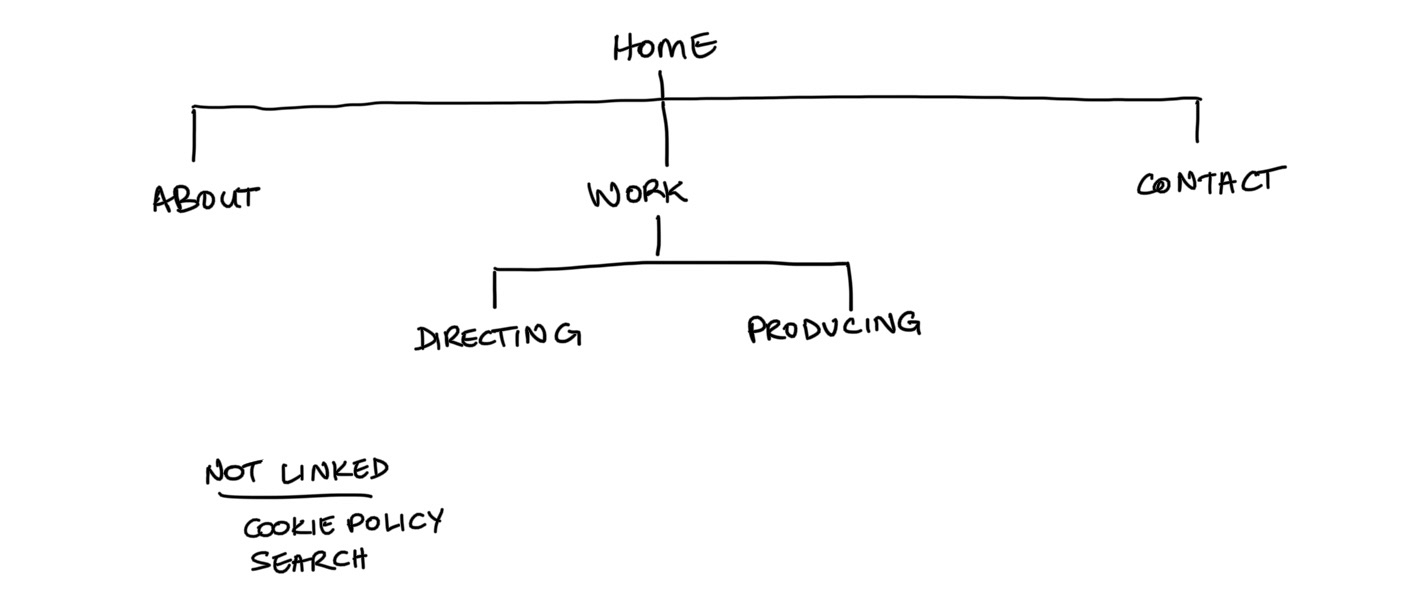
Example 3
Extra Definitions
Categories — are, well, categories. Use categories to group by type or broad topic.
Example: Narrative, Documentary, Music Videos
Tags — are narrower topics than categories. Tags are more specific and are comparable to adding hashtags at the bottom of an Instagram post.
Example: A documentary could be tagged Short Film, 2023, Women’s Rights
