
GDPR Privacy: How to Correctly Embed Youtube Videos in Squarespace
As a filmmaker, there’s a high chance that you’ll need to share a video from the world’s most popular video streaming platform: YouTube.
But did you know that when you add a YouTube video to your website, YouTube (Google) places tracking cookies to gather data from your site visitors 🍪?
These YouTube cookies are used to collect statistics and personalise the viewer’s YouTube browsing experience. For instance, serving up personalised advertising and what to watch next recommendations.
As a site owner, it’s your legal responsibility ↗ to ensure that your business and website protects the online privacy of every EU citizen that visits. Unless you’re using a third-party solution to give visitors the option to opt out of YouTube cookies or have enabled Squarespace’s new cookie banner (July 2024 update), your website isn’t GDPR-compliant.
Fortunately, in this tutorial, I’ll teach you how to add YouTube content in Squarespace—so you can rest assured that you’re not breaking the law.
You won’t need to get visitors’ consent because we’re going to stop YouTube from using cookies in the first place.
Need help getting started with Squarespace? 👉 Grab our filmmaker Squarespace portfolio template for free.
Tutorial
At present, this method won’t work with video blocks. Instead, you’ll need to embed a YouTube video using an embed block.
STEP 1.
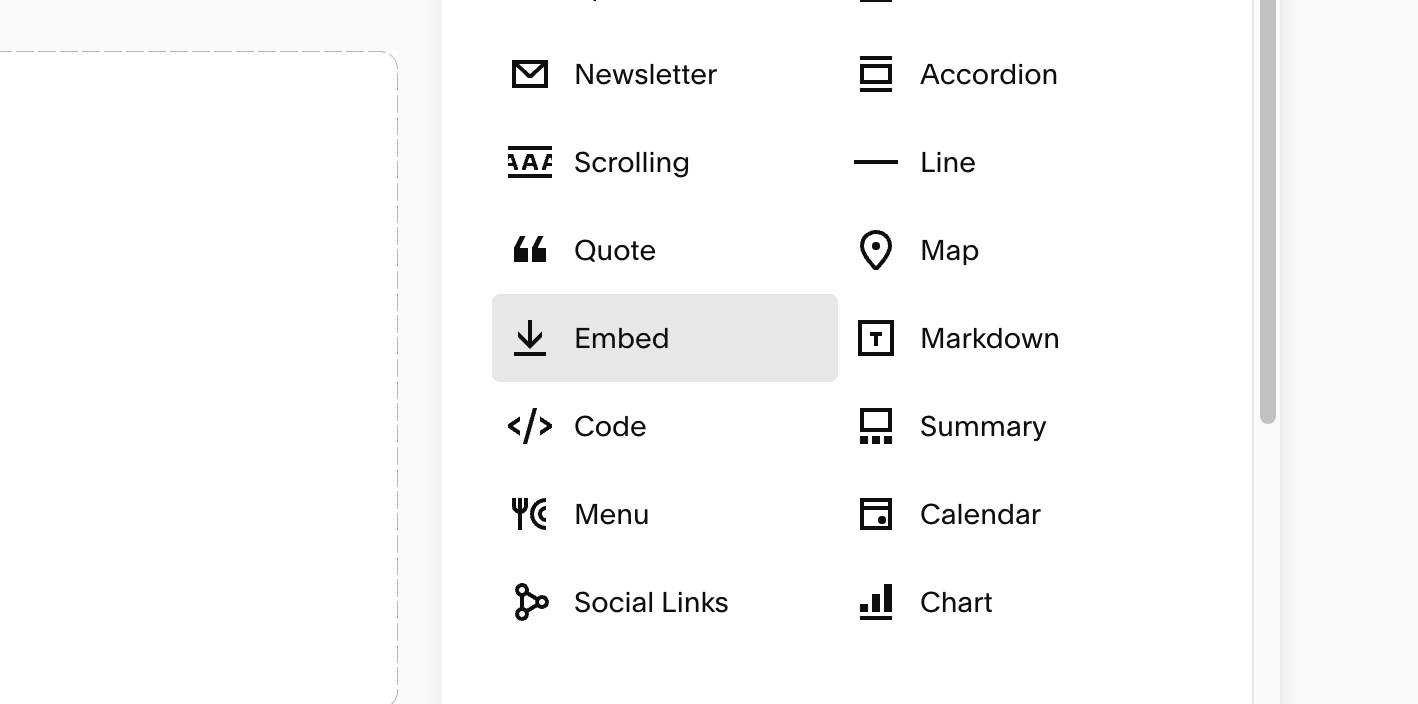
On your page or post, add an embed block where you want the video to sit on your website:
Click Add Block OR, if using the classic editor, such as on a blog post, click an insert point ( a blue plus icon ).
Select Embed.
STEP 2.
Next, visit the video on YouTube that you want to share on your site.
Click the Share button underneath the video.
Click the Embed option.

STEP 3.
Tick the box beside Enable privacy-enhanced mode.
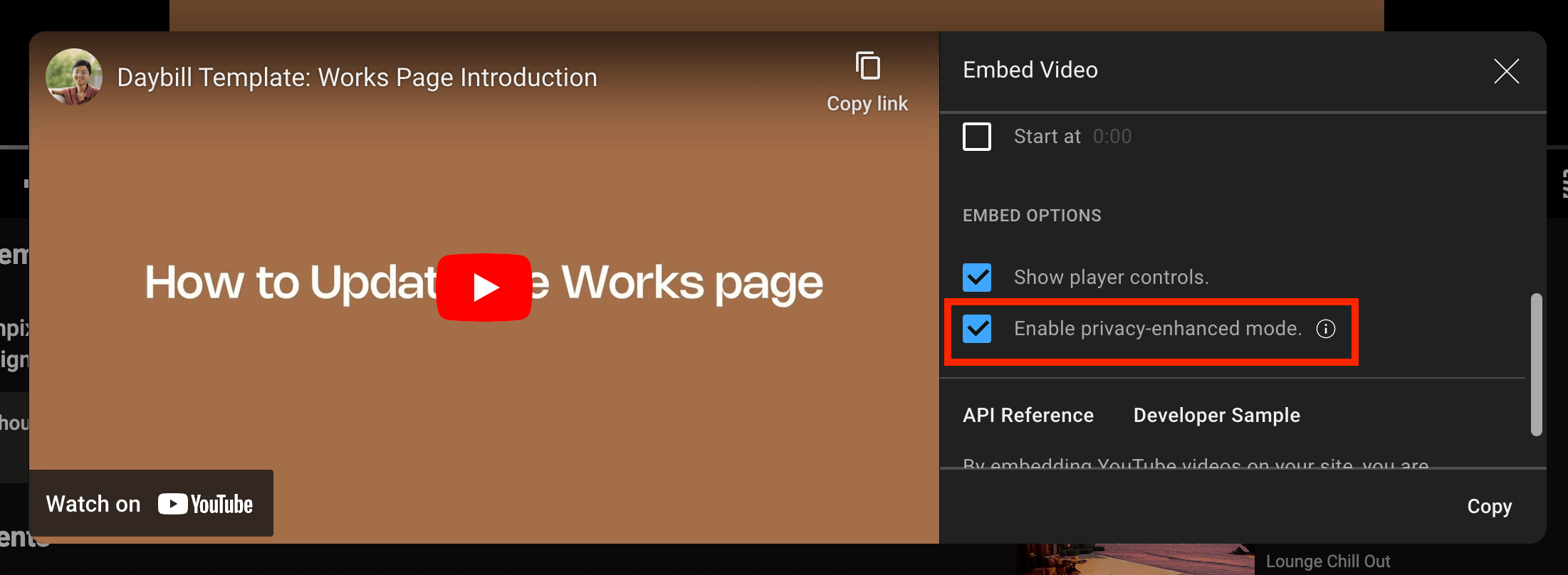
Selecting Enable privacy-enhanced mode tells YouTube to add “nocookie.com” to the video URL in the embed code.

STEP 4.
At this point, you only need to extract the URL generated by YouTube, NOT the entire embed code.
So, in my example, the URL will be:
https://www.youtube-nocookie.com/embed/DiFoYREa5FU?si=34NFr-i4RkLcj4b7
Copy your link to your clipboard.
STEP 5.
Return to your Squarespace site and embed block.
Paste the link you’ve extracted under the option to embed as a Link.
If all is working, you’ll get a success message from Squarespace below the link, confirming that the URL works.

And you’re done!
There are many ways to add videos to Squarespace. Check out 5 Ways to Add Video to Your Squarespace Site for more ideas.


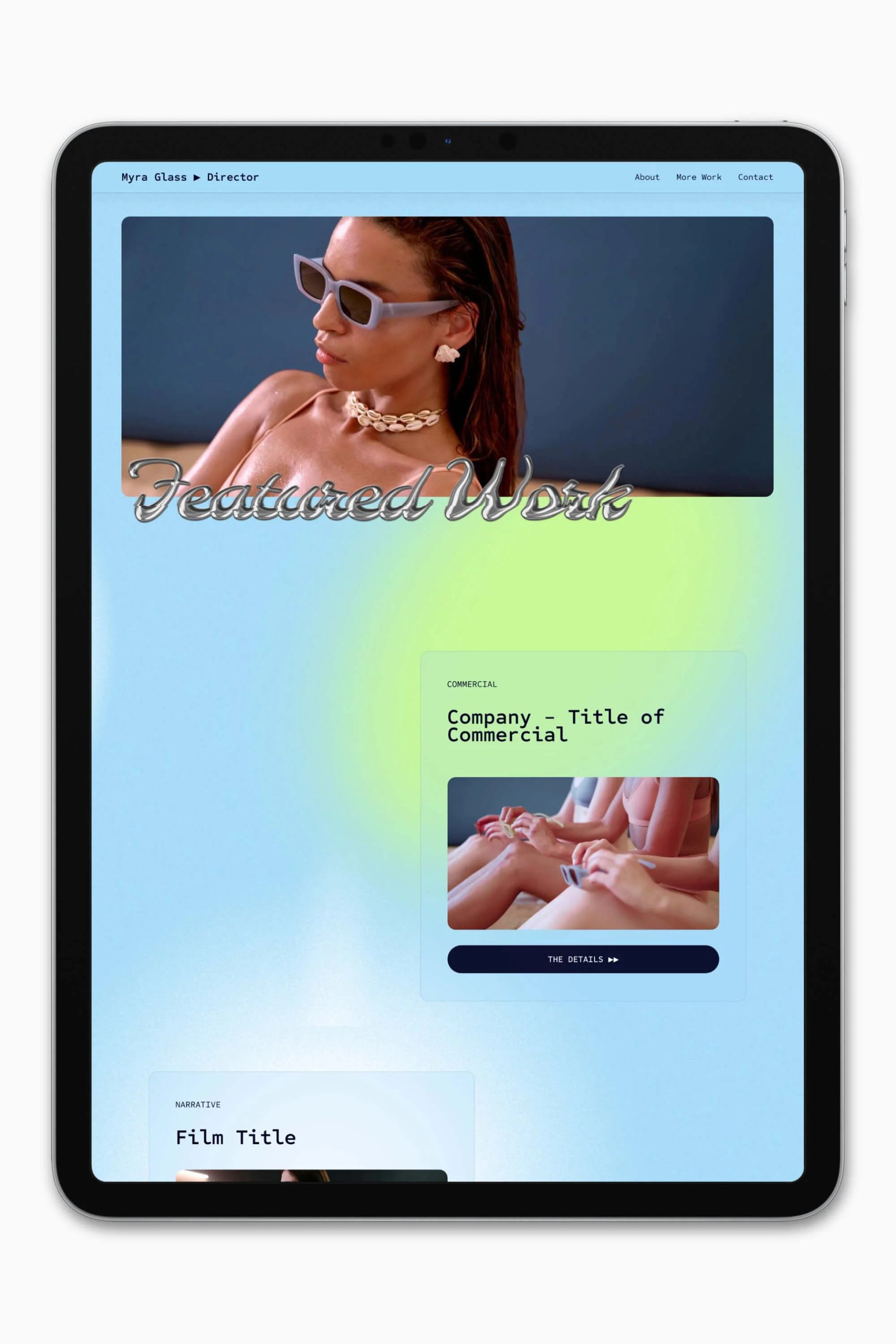


Slate is a website template featuring a bold-minimalist and cinematic design that feels warm and confident. Like the perfect cuppa coffee when you’re on set, use this Squarespace template to give your website and personal brand a boost.
Visit Demo Site
(demo password: Unlock)
Price in NZD • Xe Currency Converter